

E-commerce

AI Background Replacer

Upload a product or portrait, describe the new setting, and create a natural, production-ready background in seconds.

Drag & drop an image, or click to browse

Supports JPG, PNG, WEBP up to 20MB

Your result will appear here

See the transformation

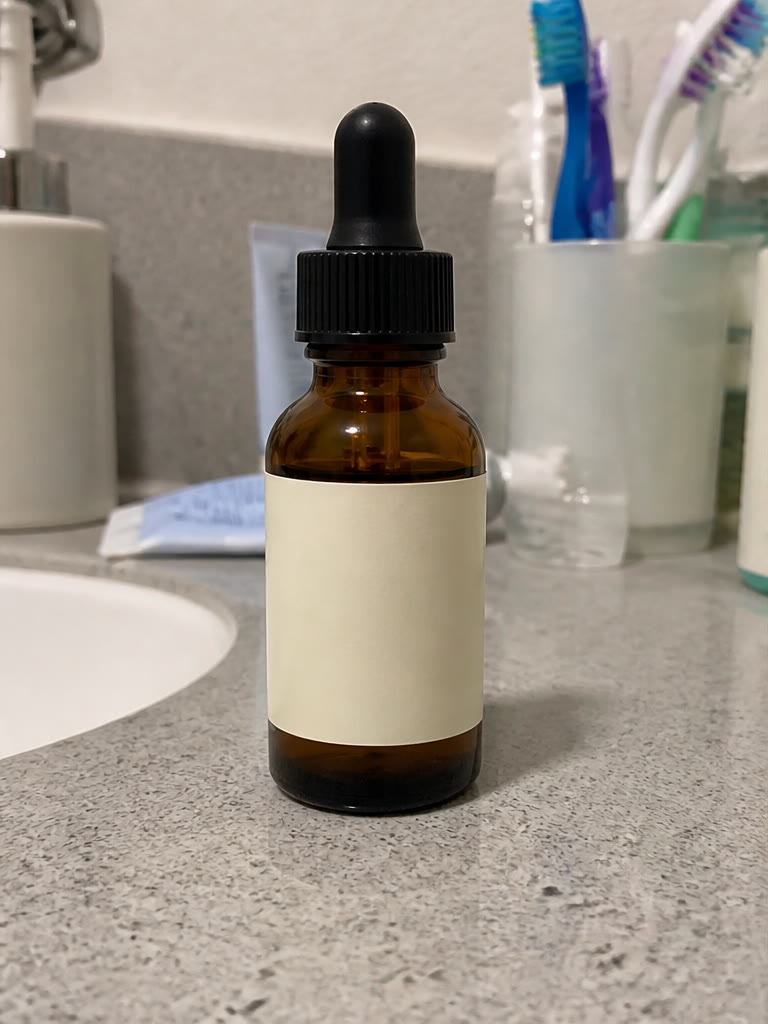
AI Background Replacer — AI Result
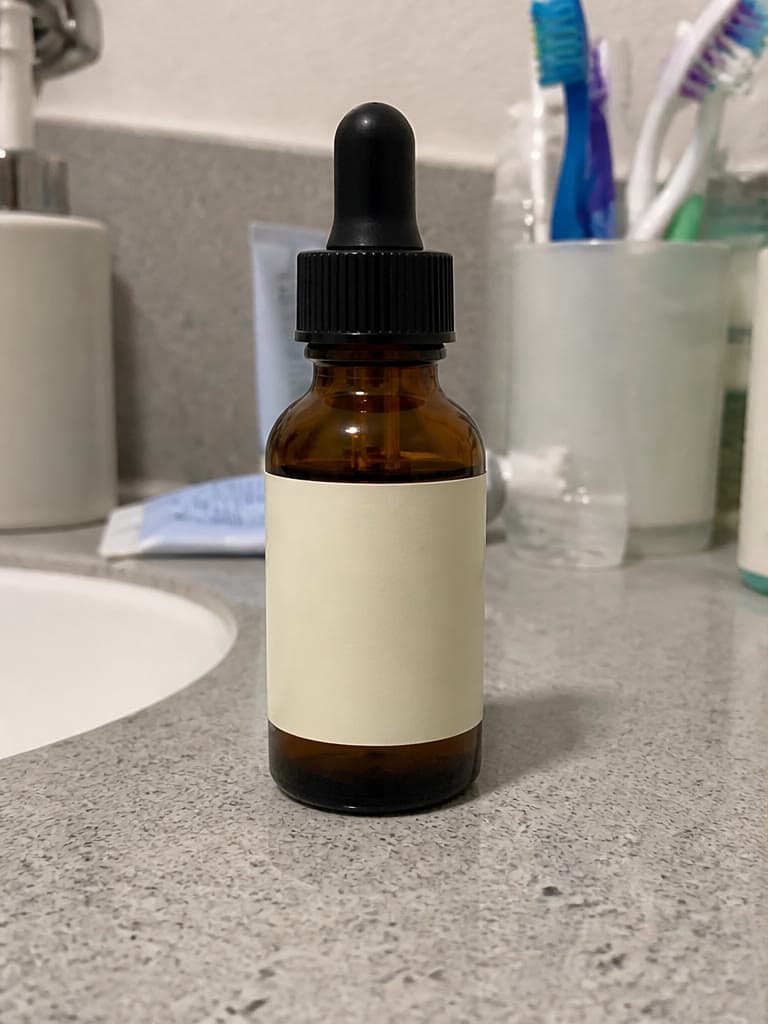
AI Background Replacer — Original
Original
AI Result

How to use the AI background replacer

Upload a clear JPG, PNG, or WEBP photo, then describe the background you want in plain language. You can request a clean studio, a realistic lifestyle location, a seasonal scene, or a branded color palette without manually masking the subject.

The AI background replacer analyzes the subject and the requested environment together so lighting, perspective, and shadows can feel consistent. Each request creates a new result while leaving the source image unchanged, so you can compare variations before downloading one.

Write a more useful background prompt

Include the location, lighting direction, color palette, mood, and photography style. For example, ask for a warm beige studio with soft window light and a subtle floor shadow instead of using a broad instruction such as “change the background.”

Keep the prompt focused on the environment and avoid conflicting directions. After generation, review subject edges, reflections, shadows, labels, and small product details at full size before publishing the image in a store or campaign.

Choose a source image that preserves the subject

Start with a well-lit image where the complete product or person is visible and clearly separated from the surroundings. Sharp source images give the model more reliable information about outlines, materials, hair, and transparent or reflective areas.

For e-commerce work, keep the original file as the product reference and check the generated result against it. Marketplace rules differ, and generative editing can introduce small changes, so verify product color, shape, branding, and required background standards before use.

Practical workflows

Features

Prompt-based backgrounds

Describe a studio, lifestyle, seasonal, or branded setting in plain language.

Subject preservation

Keep the main product or person recognizable while changing the surrounding scene.

Natural composition

Match lighting, perspective, and shadows to the newly generated environment.

Use cases

Product listings

Reuse one product photo across multiple storefront themes.

Portraits

Replace distracting locations with clean professional settings.

Seasonal campaigns

Adapt existing assets for holidays and promotions without a reshoot.

Frequently asked questions

How should I describe the new background?

Include the location, lighting, colors, mood, and photography style you want.

Will the foreground stay unchanged?

The tool is instructed to preserve it, but generative edits can introduce small differences, so review the result before publishing.

Which images work best?

Use a clear, well-lit image where the subject is fully visible and separated from the background.

Can I create a white or solid-color background?

Yes. Describe the exact color and whether you want a flat background, a studio floor, or natural shadows.

Do I need to remove the old background first?

No. Upload the source image and describe the replacement; the tool handles the background change in the same workflow.

Related tools