AI Image Outpainting
AI Outpainting Guide: Extend Images for New Aspect Ratios
Learn how to extend an image with AI for banners, social formats, and reframing while checking continuity, invented content, and composition.
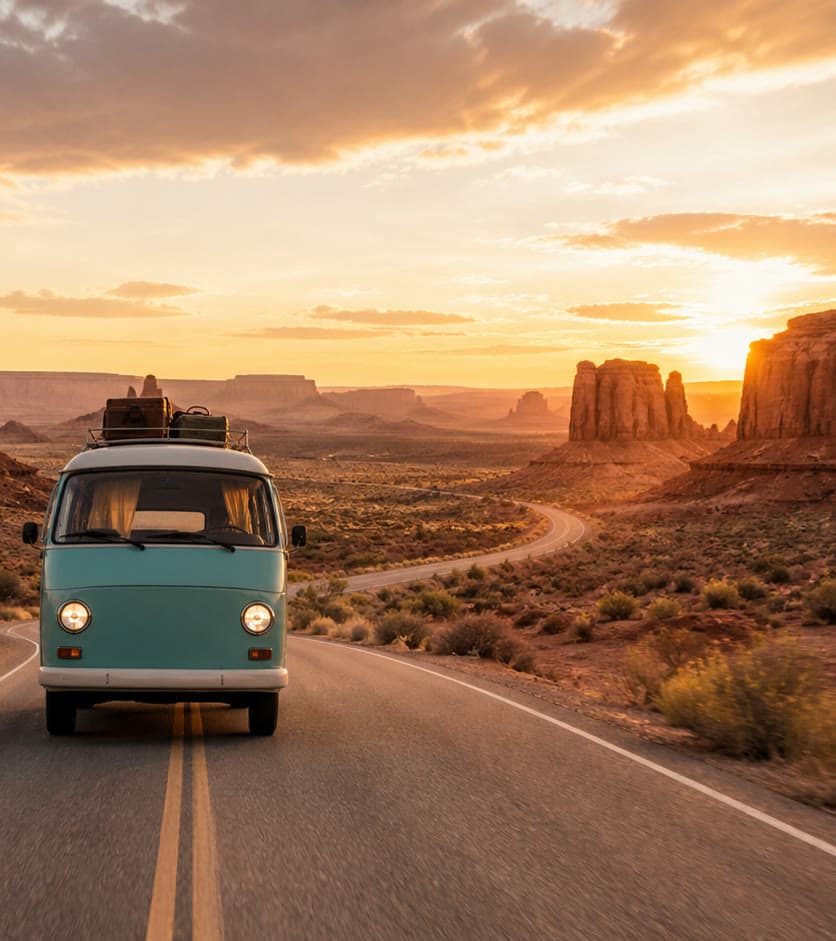
AI outpainting expands a canvas and generates content beyond the original frame. It is useful when a strong image has the wrong aspect ratio for a banner, social placement, presentation, or ad. The goal is not simply to add pixels; it is to create believable continuation while preserving the original focal point.
Choose the crop and expansion direction first
Start with the final placement and its required ratio. Expanding a portrait into a wide banner needs meaningful space on the left, right, or both; extending equally in every direction may weaken the composition.
Position the original subject where it supports the layout. If text or a call-to-action will sit on one side, create intentional negative space there rather than asking the model to fill every area with detail.
Give the model continuity clues
Describe what should continue beyond the frame rather than rewriting the whole original image. Mention the environment, surface, light direction, depth of field, and whether the added area should remain simple.
- Keep the original subject inside the source area.
- State which side needs usable negative space.
- Match the existing light, horizon, and perspective.
- Avoid introducing new people or products unless required.
- Generate the exact target ratio when possible.
Inspect the seams and new content
Review the boundary between original and generated pixels at full size. Look for repeated textures, broken lines, changes in grain, impossible architecture, inconsistent shadows, and objects that appear to merge at the seam.
Also review the composition at its actual display size. A technically smooth extension can still fail if the main subject becomes too small or the new area competes with the message.
Protect factual and branded content
Outpainting can invent people, signs, products, buildings, and landscape features. Do not present generated extensions as documentary evidence. Keep logos, packaging, captions, and legally important details inside the verified source area when possible.
For exact edge duplication or simple solid backgrounds, a conventional canvas extension may be faster and more predictable than generative outpainting.
Frequently asked questions
What is AI outpainting?
AI outpainting extends the canvas beyond an image's original boundaries and generates new pixels intended to continue the scene.
Does image extension change the original area?
The central source is intended to guide the result, but you should still compare it with the original because generative processing can introduce changes.
Which images extend most naturally?
Images with clear horizons, consistent backgrounds, visible texture cues, and enough space around the main subject are generally easier to extend.
Can I use outpainting to create ad space?
Yes. Place the subject away from the intended copy area and request simple negative space, then check readability in the final layout.
Try the workflow with your own image
Upload a clear source, follow the guide, and review the result before downloading.
Open the related AI tool