AI Image Enhancement
AI Image Enhancement Guide: Improve Clarity, Color, and Noise Carefully
Enhance photos with AI using a controlled workflow for exposure, color, noise, sharpness, faces, texture, and truthful before-and-after review.
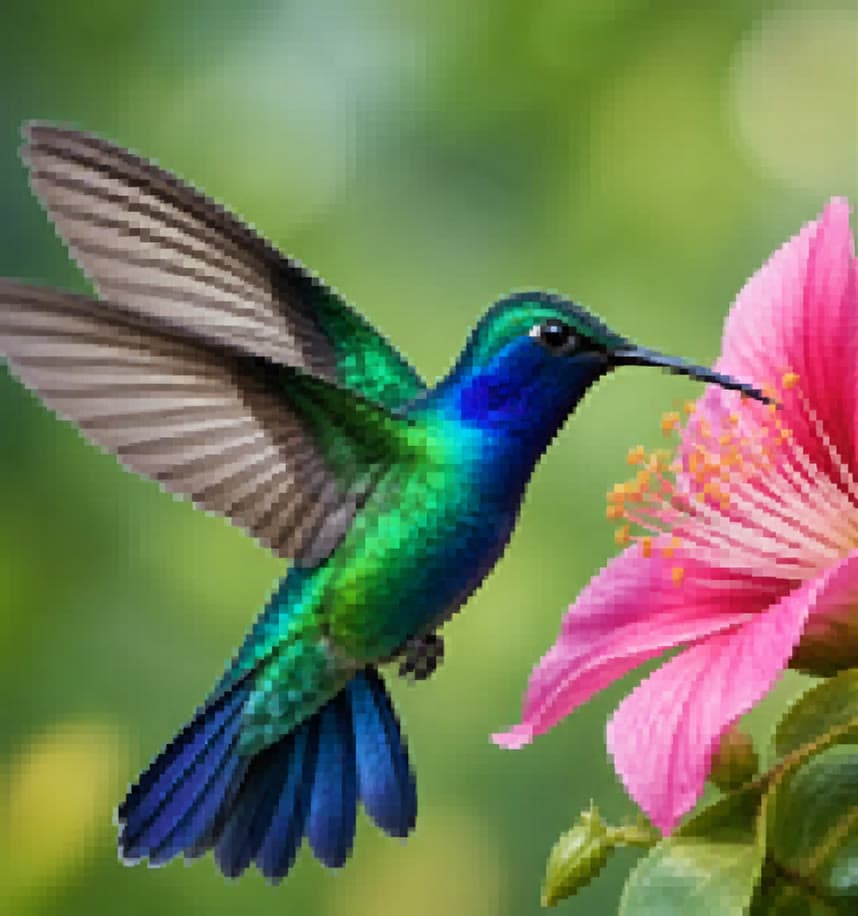
Image enhancement can balance exposure, reduce noise, improve local contrast, and sharpen perceived detail. More processing is not always better: aggressive enhancement can erase texture, shift product colors, create halos, or make skin look artificial.
Define the problem before processing
Identify whether the image needs exposure correction, white-balance adjustment, noise reduction, sharpening, or general cleanup. A clear goal makes it easier to judge whether the output is actually improved.
- Use a color-managed original when available.
- Keep a neutral reference for product color.
- Avoid repeated enhancement passes.
- Decide the final display size first.
Separate enhancement from upscaling
Enhancement changes appearance at the current scale; upscaling increases pixel dimensions. Some tools do both, but evaluate sharpness and size separately so a larger file is not mistaken for a more accurate image.
Review natural texture and color
Compare skin, fabric, hair, wood, metal, foliage, gradients, labels, and brand colors with the source. Watch for waxy surfaces, crushed shadows, clipped highlights, oversaturation, sharpening halos, and invented micro-texture.
Use truthful before-and-after comparisons
Compare at the same crop, zoom, and display conditions. Enhancement should not be used to hide product damage, change a listed item's condition, or imply that inferred details were captured by the camera.
Frequently asked questions
What does AI image enhancement change?
Depending on the source, it may adjust perceived sharpness, noise, contrast, exposure, color, and local detail.
Is enhancement the same as upscaling?
No. Enhancement changes visual qualities, while upscaling increases pixel dimensions, although one workflow may combine them.
Why does enhanced skin look artificial?
Excessive smoothing, denoising, or invented texture can remove natural pores and transitions.
How do I check product color?
Compare against a color-managed source and a trusted physical or calibrated reference; do not rely only on an uncalibrated screen.
Try the workflow with your own image
Upload a clear source, follow the guide, and review the result before downloading.
Open the related AI tool